

Smartlinx Docking Station For Laptops
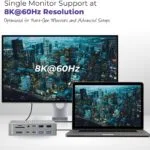
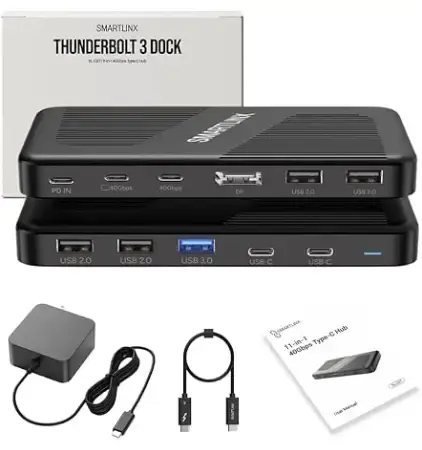
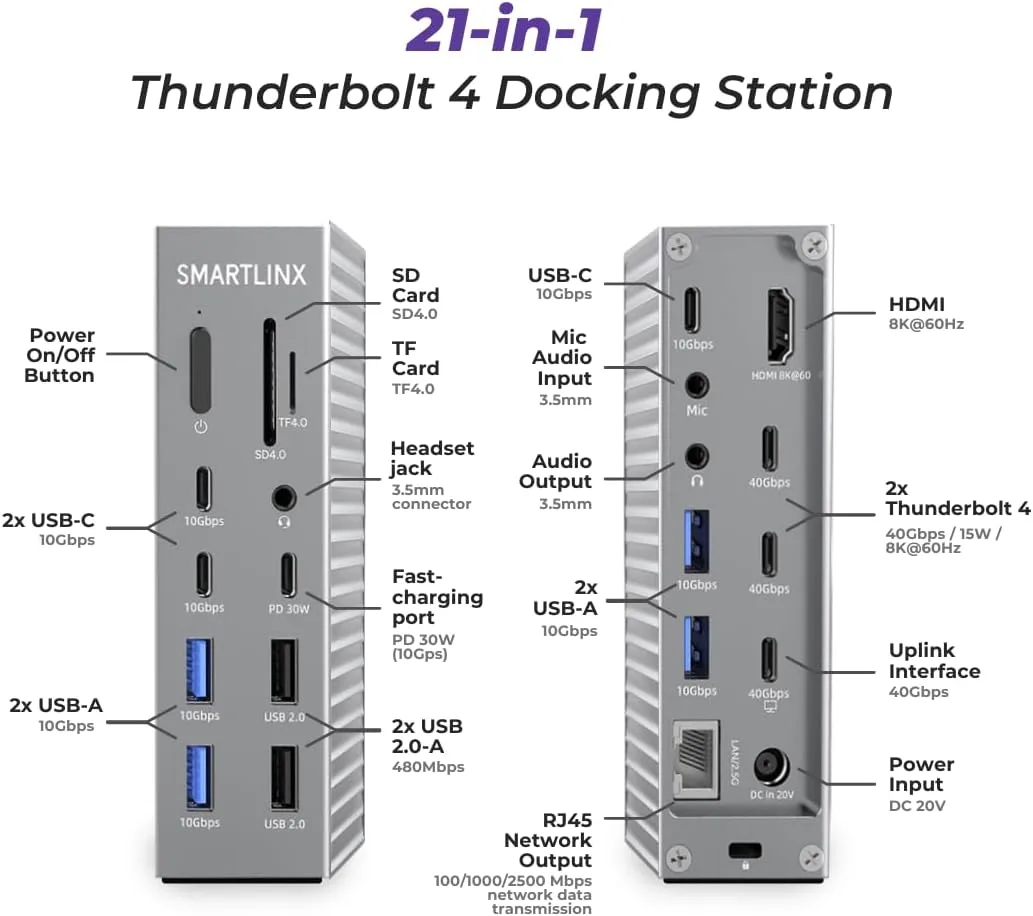
A Smartlinx docking station connects a laptop to monitors, storage, ethernet and power through one Thunderbolt or USB-C cable. The SL-019 and SL-020 add 21 ports each and the compact SL-027 adds 11 ports.All three docks support dual 4K or single 8K displays.
Spring Sales
Save up to 40% and more
Fast Free Shipping
On orders over $50.
30-Days Free Return
Returns within 30 days.
Buy Now, Pay Later.
With Shop Pay, for US residents.
Explore All Collections
Discover the Dock That Fits Your Workflow
Excellent 4.9/5
Rated 4.9 ⭐⭐⭐⭐⭐ out of 5 by verified buyers on Google and Trustindex.
What is a Docking Station For a Laptop?
A docking station is a hardware device that connects a laptop to multiple peripherals through one cable. A docking station adds ports for monitors, storage drives, ethernet and USB devices, then charges the laptop through the same connection. A Smartlinx dock converts a 2-port laptop into a workstation with 11 to 21 ports.
Display outputs connect monitors through HDMI and DisplayPort
Data ports connect drives through USB-C and USB-A
Network ports connect wired internet through RJ45 ethernet
Power delivery charges the laptop through the host cable
Which Smartlinx Dock Fits?
The SL-019 fits dual-monitor setups, the SL-020 fits 5-display setups and the SL-027 fits travel setups. Port count and display support determine the right dock.
Specification | SL-019 | SL-020 | SL-027 |
Total ports | 21 | 21 | 11 |
Displays supported | Dual (2) | Up to 5 | Dual (2) |
Max resolution | Dual 4K / 8K | 4K per display | Dual 4K / 8K |
Connection | Thunderbolt 4 | Thunderbolt 4 | Thunderbolt 3 |
Data transfer | 40Gbps | 40Gbps | 40Gbps |
Laptop charging | 90W | 150W | 60W |
Best for | Dual monitors | 3–5 monitors | Travel |
Price | $204.99 | $259.99 | $69.99 |
Docking Station Laptop Compatibility
Smartlinx docking work with 4 laptop categories: MacBook, Windows, ChromeOS and Linux. A USB-C port with DisplayPort Alt Mode or Thunderbolt is the connection requirement.
Laptop | Native displays | DisplayLink displays (SL-020) |
MacBook Pro (M-series Pro/Max) | 2-4 | Up to 5 |
MacBook Air (M4 / M5) | 2 | Up to 5 |
MacBook Air (M1 / M2 / M3) | 1 | Up to 5 |
Chromebook / Surface | 2 | Up to 5 |
Windows 11 laptop | 2 | Up to 5 |
Compatible brands include Apple MacBook, Dell XPS, HP Spectre, Lenovo ThinkPad, and Microsoft Surface.
Docking station for MacBook Pro and MacBook Air
Smartlinx docks work with MacBook Air M1–M5 and MacBook Pro M1–M5, plus Intel MacBooks with Thunderbolt 3. MacBook Air M1–M3 supports 1 external display natively. While MacBook Air M4 and M5 support 2 external displays. MacBook Pro with M-series Pro and Max chips supports 2 to 4 external displays natively depending on the chip. The SL-020 uses DisplayLink to add up to 5 displays on any MacBook, including older MacBook Air models limited to 1 native display.
Docking for Windows, ChromeOS and Linux laptops
Smartlinx docking work with Windows 10, Windows 11, ChromeOS and most Linux distributions. Compatible Windows laptops include Dell XPS, HP Spectre, Lenovo ThinkPad, and Microsoft Surface. Linux distributions like Ubuntu, Fedora, and Debian detect Smartlinx docks without driver installation.USB-C vs Thunderbolt connection requirements
Thunderbolt 4 docks transfer data at 40Gbps and support dual 4K displays. While USB-C docks transfer data at 5–10Gbps with limited dual-display support. The SL-019 and SL-020 use Thunderbolt 4. The SL-027 uses Thunderbolt 3. Thunderbolt 4 ports remain backward-compatible with Thunderbolt 3 and USB-C laptops.
How Many Monitors Can Smartlinx Docking Run?
Smartlinx stations run 2 to 5 monitors, depending on the model and laptop. The SL-019 and SL-027 run dual 4K displays at 60Hz. The SL-020 runs up to 5 displays through DisplayLink technology.
Dock | Native displays | DisplayLink displays | Max resolution |
SL-019 | 2 | — | Dual 4K @ 60Hz |
SL-020 | 2 | Up to 5 | 4K per display |
SL-027 | 2 | — | Dual 4K @ 60Hz |
DisplayLink sends video over USB through a compression driver. The driver bypasses the native display limit on Apple Silicon MacBooks. A MacBook Air M1–M3 runs 1 external display natively, and a MacBook Air M4 or M5 runs 2. The SL-020 adds up to 5 displays on any MacBook through DisplayLink. Dual-monitor setups increase productivity by 42%, according to Jon Peddie Research.
Docking Station Ports Explained
A Smartlinx docking includes 7 port types: USB-C, USB-A, HDMI, DisplayPort, RJ45 ethernet, SD card reader, and 3.5mm audio. Each port connects a different category of device.
Port type | Connects | Speed |
USB-C | Drives, displays, devices | Up to 40Gbps |
USB-A | Keyboard, mouse, drives | Up to 10Gbps |
HDMI | External monitors | 4K @ 60Hz |
DisplayPort | External monitors | 4K @ 60Hz |
RJ45 ethernet | Wired internet | Gigabit |
SD card reader | Camera and device cards | UHS-I |
3.5mm audio | Headphones, speakers | Analog |
Why is a Docking not Detecting a Monitor?
A docking station fails to detect a monitor for 4 main reasons: a loose cable, an outdated graphics driver, an exceeded display limit, or a power-cycle requirement. Each cause has a direct fix.
Problem | Cause | Fix |
Monitor not detected | Loose cable | Reseat the HDMI or DisplayPort cable at both ends |
Black screen | Outdated graphics driver | Update the laptop GPU driver |
Third monitor will not work | Exceeded native display limit | Install the DisplayLink driver (SL-020) |
No signal after sleep | Dock needs a reset | Power-cycle the dock for 30 seconds |
According to Microsoft support documentation, a 30-second dock power cycle resolves the majority of display-detection failures on Windows 11.
Difference Between Thunderbolt 3, 4 and 5?
Thunderbolt 3 and Thunderbolt 4 transfer data at 40Gbps, while Thunderbolt 5 transfers data at 80Gbps, or 120Gbps with Bandwidth Boost. All three use the USB-C connector and stay backward-compatible.
Standard | Data Transfer | Max Displays | Max Charging | Smartlinx Dock |
Thunderbolt 3 | 40Gbps | Dual 4K | Up to 100W | SL-027 |
Thunderbolt 4 | 40Gbps | Dual 4K / Single 8K | Up to 100W | SL-019, SL-020 |
Thunderbolt 5 | 80–120Gbps | Triple 4K / Dual 8K | Up to 240W | — |
The Smartlinx SL-019 and SL-020 use Thunderbolt 4 at 40Gbps. The SL-027 uses Thunderbolt 3. A Thunderbolt 4 dock connects to a Thunderbolt 5 MacBook and runs at 40Gbps speeds. Thunderbolt 5 laptops include the M4 Pro, M4 Max, M5 Pro, and M5 Max MacBook Pro.
Smartlinx vs Other Brands
Smartlinx competes with CalDigit and Plugable in the US docking station market.
Feature | Smartlinx SL-020 | CalDigit TS4 | Plugable TBT4-UDZ |
Total ports | 21 | 18 | 11 |
Displays supported | Up to 5 (DisplayLink) | 3 | 2 |
Laptop charging | 100W | 98W | 100W |
Connection | Thunderbolt 4 | Thunderbolt 4 | Thunderbolt 4 |
Warranty | 12 months | 12 months | 12 months |
US-based support | Yes | Yes | Yes |
Price | $259.99 | $399.99 | $299.95 |
Smartlinx Docking Stations: Answers, Made Simple
A Thunderbolt 4 docking station transfers data at 40Gbps and runs dual 4K displays. While a USB-C docking station transfers data at 5–10Gbps with limited display support. Thunderbolt 4 also delivers certified 100W charging. The Smartlinx SL-019 and SL-020 use Thunderbolt 4. The SL-027 uses Thunderbolt 3. A Thunderbolt 4 dock stays backward-compatible with USB-C laptops through the same port.
A docking station charges a laptop through Power Delivery over the host cable. The Smartlinx SL-019 delivers 90W, the SL-020 delivers 150W and the SL-027 delivers 60W. 150W charges a 16-inch MacBook Pro under sustained load. 60W charges a MacBook Air and most ultrabooks. The laptop charges and transfers data through the same single cable, which removes the separate charger.
A docking station runs dual or multiple monitors depending on the model. The Smartlinx SL-019 and SL-027 run dual 4K monitors at 60Hz. The SL-020 runs up to 5 monitors through DisplayLink technology. The exact monitor count depends on the laptop GPU and operating system. DisplayLink bypasses the native single-display limit on Apple Silicon MacBooks, which adds 5-display support on any MacBook.
Smartlinx docking stations work with MacBook Pro M1, M2, M3, M4, and M5, plus Intel MacBook Pro with Thunderbolt 3. Connection requires one Thunderbolt or USB-C cable. MacBook Pro models with Pro and Max chips run 2 or more external displays natively. The SL-020 adds up to 5 displays on any MacBook Pro through DisplayLink. No driver installation is required for basic dual-display use.
The Smartlinx SL-019 Thunderbolt 4 dock runs dual 4K monitors at 60Hz with 90W charging and 21 ports. The dock connects two external displays through HDMI and DisplayPort. 40Gbps Thunderbolt 4 bandwidth drives both 4K displays without lag. The SL-027 runs the same dual 4K output at $69.99 with 11 ports and 60W charging. Both docks support extended and mirrored display modes.
Yes, you can connect multiple monitors up to five at once to our Thunderbolt docking stations. However, exact number of monitors vary as per your laptop and dock model.
Set up a docking station with multiple monitors in 4 steps: connect power, connect the host cable, attach the monitors, then extend the displays in system settings. For 3 to 5 monitors on the SL-020, install the DisplayLink driver first. On Windows, press Windows + P and select Extend. On macOS, open System Settings, then Displays, and arrange the screens. Setup takes under 5 minutes.
DisplayLink, Alt Mode and MST are 3 technologies that send video from a laptop to external monitors through a dock. Each works differently and supports a different display count.
- DisplayPort Alt Mode sends a native video signal through USB-C, which supports 1 to 2 displays
- MST (Multi-Stream Transport) splits one DisplayPort signal across 2 monitors on Windows, but not on Apple Silicon Macs
- DisplayLink compresses video over USB through a driver, which supports up to 5 displays on any laptop, including MacBook Air
The SL-020 uses DisplayLink to bypass the Apple Silicon single-display limit. According to Kensington connectivity documentation, DisplayLink is the only method that extends beyond the native display limit on macOS.