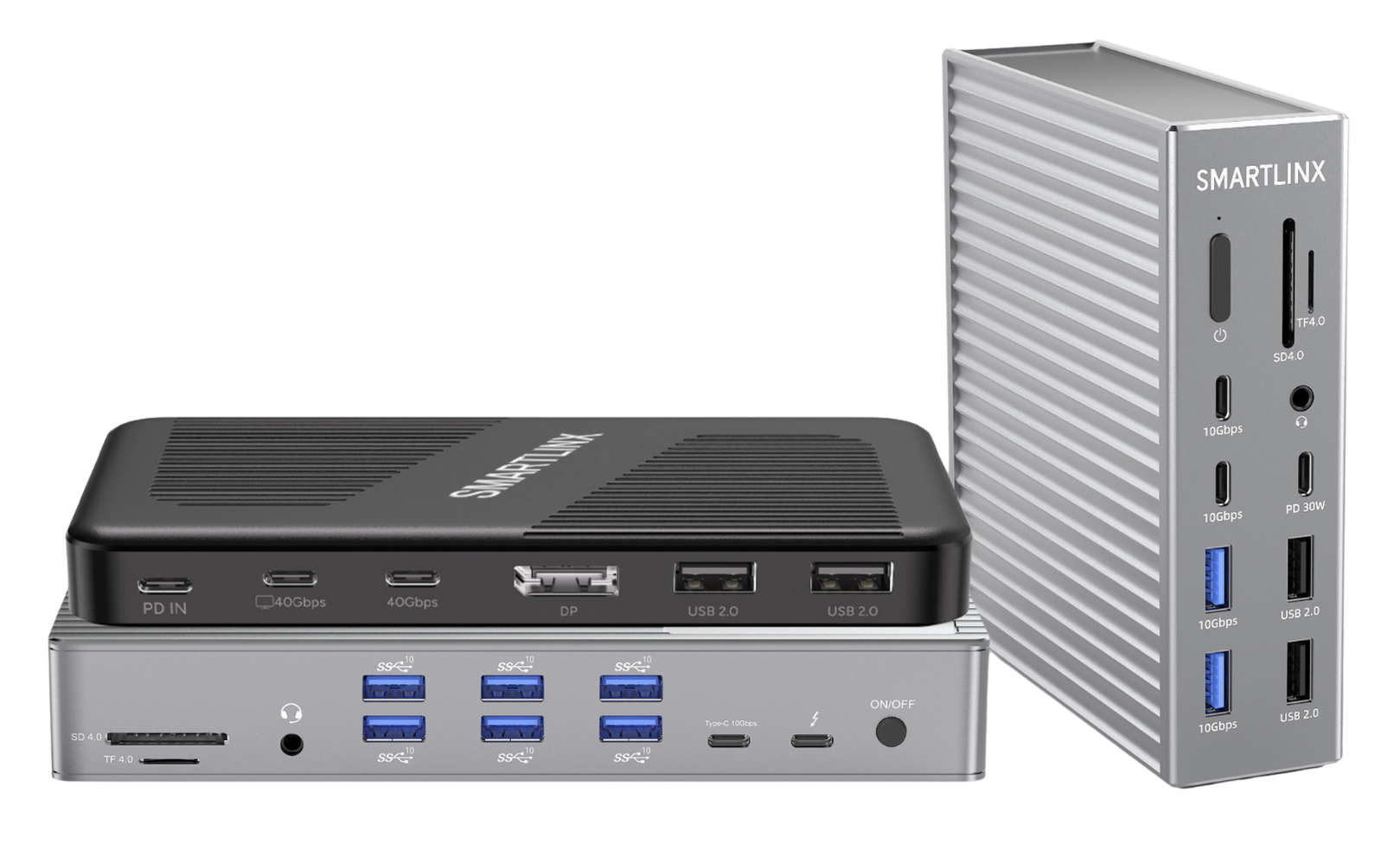

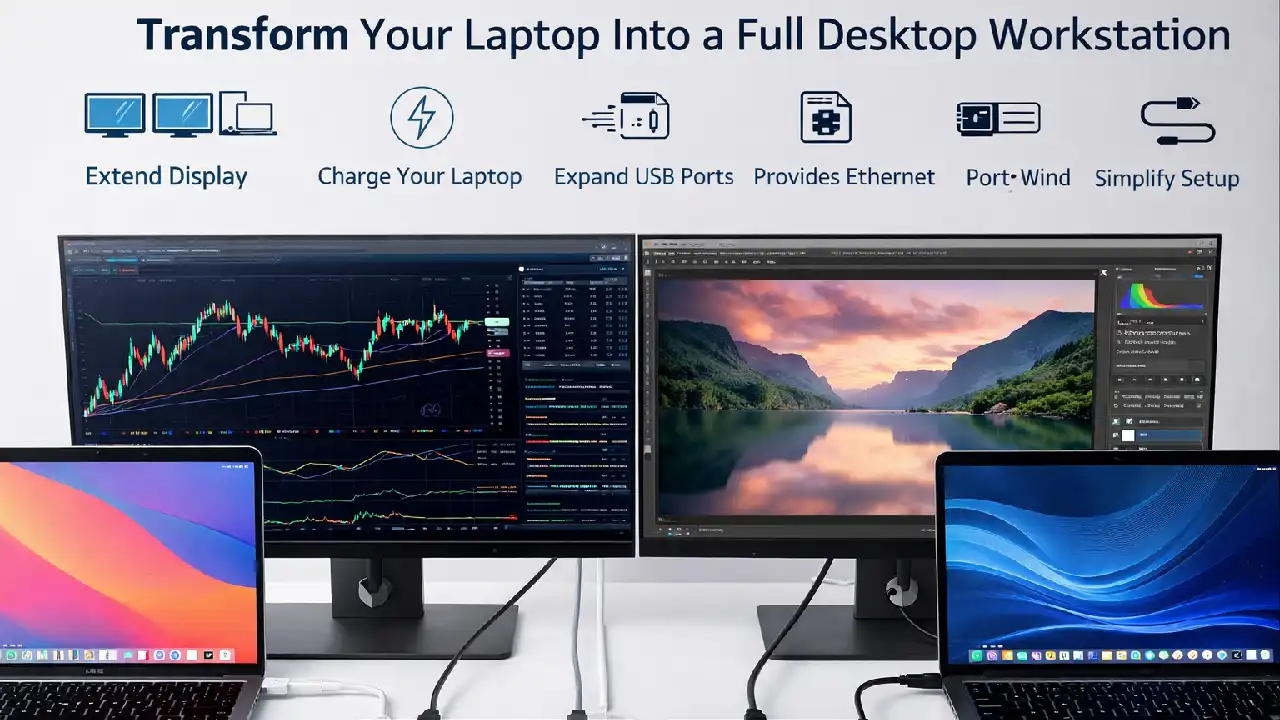
| A docking station is a device that plugs into your laptop via a single cable, usually USB-C or Thunderbolt. And instantly gives you access to multiple monitors, USB ports, ethernet and charging. It turns your laptop into a full desktop workstation without the cable clutter. |
If you’ve ever wanted to connect two monitors to your laptop. Plug in a keyboard, a mouse, ethernet and still charge your laptop all through a single cable a docking station is exactly what you need.
In this guide we’ll cover everything: what a docking station actually is, what it does, how it works, and which Smartlinx dock is right for you.
What Is a Docking Station?
A docking station (also called a dock) is a hub that sits on your desk and connects to your laptop through a single cable. Once connected, your laptop can use all the ports and displays attached to the dock. Even if your laptop itself only has one or two ports.
Think of it like a power strip but for your laptop’s ports. Instead of only having the ports built into your laptop, you suddenly have access to ten, fifteen or even twenty ports all from one connection.
| 💡 Real-world example: You have a MacBook Pro with 2 Thunderbolt ports. Plug the Smartlinx SL-019 into one of them and you instantly have: 2 external monitors, 4 USB-A ports, 2 USB-C ports, ethernet an SD card slot, an audio jack and 96W laptop charging all through that single cable. |
What Does a Docking Station Actually Do?
Here’s a breakdown of the main things a docking station does for your laptop:
- Extends your display: Connects two or more external monitors so you can see more at once
- Charges your laptop: Uses one cable to power up your laptop — no separate charger needed at your desk
- Expands your USB ports: Gives you USB-A ports for mice, keyboards, and drives without using your laptop’s ports
- Provides wired ethernet: Connects your laptop to a wired internet connection, which is faster and more stable than Wi-Fi
- Adds an audio jack: Lets you plug in headphones or a microphone at your desk
- Simplifies your setup: Connects all your desk devices to your laptop through a single cable plug/unplug
How Does a Docking Station Work?
When you plug a Thunderbolt or USB-C cable from the dock into your laptop. The dock and laptop start communicating at very high speed. The dock’s chip takes that single connection and splits it into many separate channels — one for each monitor, one for USB data, one for charging, and so on.
The latest docking stations use Thunderbolt 4 technology. Which can carry up to 40Gbps of data fast enough to run two 4K displays, transfer files and charge your laptop all at the same time without any slowdown.
Thunderbolt vs USB-C: What’s the Difference?
| Feature | Comparison |
| Connection Type | Thunderbolt 4 (TB4) vs USB-C (standard) |
| Max Data Speed | 40 Gbps vs 10–20 Gbps |
| Dual 4K Monitors | Yes vs Limited (1–2 displays) |
| Laptop Charging | Up to 100W vs Up to 65W typically |
| Best For | Home office, pro use vs Light use, travel |
Who Actually Needs a Docking Station?
A docking station is most useful for you if:
- You work from a desk most of the day and want a proper workstation setup.
- You want to connect one or two external monitors to see more of your work at once.
- You’re tired of plugging and unplugging multiple cables every time you sit down.
- You use a MacBook, Dell, Lenovo, or HP laptop with limited ports.
- You need fast, reliable wired ethernet instead of Wi-Fi.
- You want your laptop to charge while you work without a separate charger.
If even two of those apply to you, a docking station will genuinely change how you work.
Thunderbolt 4 vs Thunderbolt 3 — Which Do You Need?
Smartlinx makes two types of docking stations. Here’s how to choose:
| Feature | Product |
| Smartlinx SL-019 / SL-020 (TB4) | |
| Technology | Thunderbolt 4 |
| Ports | 21 ports |
| Max Displays | 2 displays (SL-019) / 5 displays (SL-020) |
| Charging | 96W Power Delivery |
| Best For | MacBook Pro M1–M4, new Dell/Lenovo/HP laptops |
| Compatibility | Works with TB3 and USB-C laptops too |
| ✅ Simple Rule: If your laptop was made after 2021 and has a Thunderbolt port. Go with the SL-019 (TB4). If you have an older laptop with Thunderbolt 3, the SL-027 is perfect and costs less. |
Does a Docking Station Work with Any Laptop?
Most modern docking stations, including all Smartlinx docks, connect via USB-C or Thunderbolt. This means they work with:
- All MacBook Pro and MacBook Air models (M1, M2, M3, M4)
- Dell XPS, Latitude, and Inspiron laptops
- Lenovo ThinkPad X, T, and L series
- HP EliteBook, ProBook, and Spectre
- Most Windows laptops made after 2018 with a USB-C port
The main thing to check is whether your laptop has a Thunderbolt or USB-C port. If it does, a Smartlinx dock will work. If you’re not sure, check the port on your laptop. If it has a small lightning bolt symbol next to it, it’s Thunderbolt.
What Should You Look For in a Docking Station?
When choosing a dock, these are the five things that actually matter:
- Number of ports: Make sure there are enough USB-A, USB-C, and display ports for everything on your desk
- Charging wattage: :Look for at least 85W PD to charge a laptop; 96W if you have a MacBook Pro
- Display support: Check how many monitors it supports and at what resolution (4K or 1080p)
- Connection type : Thunderbolt 4 is the fastest; USB-C works for lighter use
- Build quality: A metal chassis dissipates heat better than plastic and lasts longer
| 🛒 Our Top Pick
Smartlinx SL-019 Thunderbolt 4 Dock — 21 ports, dual display, 96W laptop charging. The best all-round Thunderbolt 4 dock for home office and professional use. → Buy Smartlinx SL-019 on Amazon | See SL-027 (budget TB3 option) |
Frequently Asked Questions
Q: Is a docking station the same as a USB hub?
No. A USB hub only adds more USB ports. A docking station goes much further. It also supports multiple monitors, ethernet, audio and laptop charging. Think of a USB hub as a small tool and a docking station as a full upgrade to your workspace.
Q: Do I need a special cable to use a docking station?
Most docking stations come with a cable included. Smartlinx docks use a Thunderbolt 4 or USB-C cable that connects your laptop to the dock. You don’t need any other cables on the dock side. You just plug your monitor, keyboard and other devices into the dock’s ports.
Q: Will a docking station slow down my laptop?
No. Modern Thunderbolt 4 docks are designed to run multiple devices simultaneously without affecting laptop performance. The Thunderbolt 4 standard has enough bandwidth (40Gbps) to handle dual 4K monitors, USB devices, charging and ethernet all at once.
Q: Can I use a docking station with a desktop computer?
Docking stations are designed for laptops. A desktop already has a motherboard with many ports built in. If you want to add ports to a desktop. You would add a PCIe expansion card instead.
Q: Does a Thunderbolt 4 dock work with a Thunderbolt 3 laptop?
Yes. Thunderbolt 4 docks are fully backwards compatible with Thunderbolt 3 laptops. You might not get all the TB4 features, but the dock will work correctly and you’ll still get dual monitors, USB ports, ethernet and charging.
| Ready to upgrade your setup? Browse all Smartlinx docking stations and find the right one for your laptop, budget and workflow. Every Smartlinx dock ships with a cable and a 2-year warranty. |